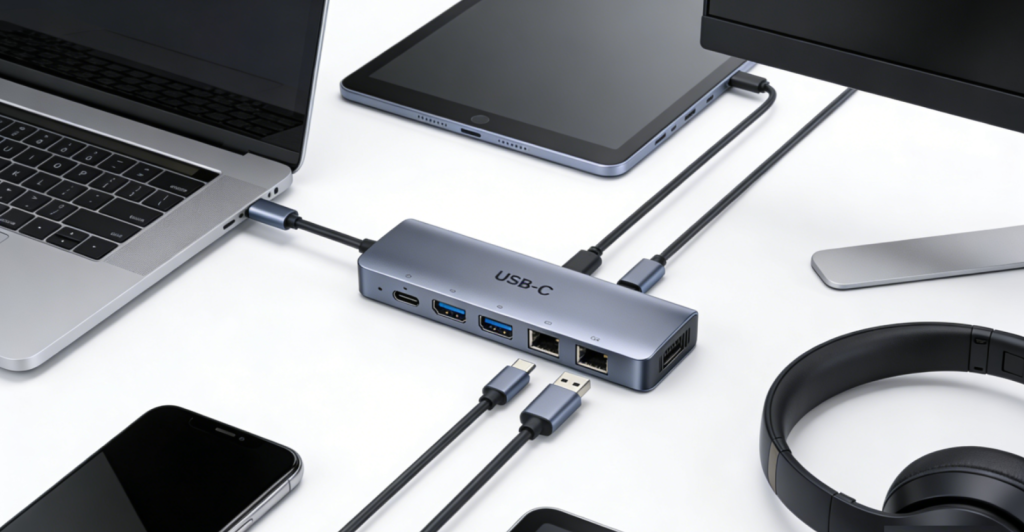
The global USB-C docking station market is experiencing steady expansion, valued at
12.4billionin2025andprojectedtoreach20.1 billion by 2032 with a CAGR of 7.3%. This growth is driven by the universal adoption of USB-C ports across laptops, tablets, and smartphones—fueled by hybrid work models, multi-device workflows, and the need for streamlined connectivity. In 2026, Thunderbolt 4/USB4-enabled docks dominate the premium segment with 58% market share, while budget-friendly USB 3.2 Gen2 models capture 32% of sales. Key players including Anker, Belkin, Kensington, Acer, and Lenovo account for over 70% of global revenue, with a growing focus on portability, multi-display support, and power delivery capabilities. Top trends include detachable modular designs, GPU-agnostic display expansion, and 100W+ PD charging—with 67% of users prioritizing versatile port selection over raw speed.
2026 marks a transformative year for USB-C docking stations: DisplayLink’s next-gen DL-7000 technology enables seamless multi-4K display support across old and new devices, Anker’s modular designs blend desktop functionality with on-the-go portability, and universal compatibility across Windows, macOS, and ChromeOS eliminates ecosystem barriers. Users face distinct tradeoffs: remote workers prioritize Ethernet and multi-monitor support, while digital nomads seek lightweight, compact hubs. Below, we break down core technologies, top 2026 models, and tailored guidance to help you find the perfect docking station for all your gadgets.
I. Core Technology: Key Innovations & 2026 Breakthroughs ⚙️
USB-C docking stations redefine connectivity by centralizing device integration, anchored by five defining technologies—interface protocols, display expansion, power delivery, port versatility, and design engineering. Here’s how 2026’s offerings elevate these essentials for real-world use:
1. Interface Protocols: Speed & Compatibility 🚀
2026’s leading docks leverage USB4 and Thunderbolt 4 protocols, delivering 40Gbps data transfer speeds—fast enough to transfer a 4K movie (approximately 100GB) in under 90 seconds. These protocols support backward compatibility with USB 3.2 Gen2x2 (20Gbps) and USB 3.0 devices, ensuring seamless integration with older peripherals like printers or external HDDs. A game-changing innovation is GPU-agnostic DisplayLink technology, which bypasses laptop GPU limitations by acting as a virtual graphics card. This enables multi-display setups (up to 8x 4K monitors with adapters) even on older laptops or devices lacking advanced graphics hardware—extending the lifespan of your existing tech investment. For budget users, USB 3.2 Gen1 docks (10Gbps) remain a reliable choice, balancing speed and affordability for everyday tasks like file transfers and peripheral connectivity.
2. Display Expansion: Multi-Screen Productivity 🖥️
Modern workflows demand flexible display options, and 2026’s docks deliver unprecedented versatility tailored to user needs:
- Premium Models: DisplayLink Pro-equipped docks support up to 4x 4K@60Hz displays natively, while HDMI 2.1 and DisplayPort 2.0 outputs enable 8K@60Hz or 4K@120Hz—ideal for content creators editing 4K video or gamers seeking smooth gameplay.
- Mid-Range Options: Typically offer 2x HDMI 2.0 ports (4K@30Hz), sufficient for remote work multitasking (e.g., video calls + document editing + project management).
- Budget Picks: Provide single HDMI or DisplayPort outputs for basic extended display needs (e.g., laptop + external monitor for better visibility).
Unlike traditional docks tied to specific GPU architectures, DisplayLink-powered hubs work across Windows, macOS, and ChromeOS—making them perfect for mixed-device environments (e.g., a team using both Windows laptops and MacBooks). A key trend is HDR support, with top-tier docks delivering vivid color accuracy for photo editing and video production.
3. Power Delivery: Charging & Performance ⚡
100W PD (Power Delivery) has become the standard for mid-range to premium docks, enabling simultaneous charging of laptops (up to 16-inch models) and peripherals—eliminating the need for multiple chargers. High-end Thunderbolt 4 docks push this further with 140W PD, supporting power-hungry devices like gaming laptops or mobile workstations. Innovations in power management include intelligent distribution, which prioritizes laptop charging while allocating sufficient power to USB-A/C peripherals, external SSDs, and displays.
Budget docks typically offer 60W PD, suitable for ultrabooks and tablets, while specialized travel docks include 30W fast-charging USB-C ports for smartphones and wearables. This integration streamlines workspaces and travel kits—critical for users who switch between home offices and on-the-go locations.
4. Port Versatility: All-in-One Connectivity 🔌
2026’s docks prioritize comprehensive port selection to accommodate diverse gadgets, with user-centric designs that eliminate “port panic” (realizing you’re missing a connection for your device):
- Premium Models: Feature up to 13 ports (e.g., Anker Nano 13-in-1) including dual HDMI, DisplayPort, Gigabit Ethernet, SD/microSD card readers, USB-A 3.2 Gen2, USB-C data ports, and a 3.5mm audio jack—covering photographers, remote workers, and content creators.
- Mid-Range Docks: Balance ports for everyday use (2x HDMI, Ethernet, USB-A/C, SD reader) without excess bulk.
- Budget/Travel Hubs: Focus on essentials (HDMI, USB-A/C, SD reader) for minimal carry weight.
A notable innovation is modular port design—some docks feature detachable mini-hubs with essential ports (SD reader, USB-A/C, HDMI) for travel, while the full base station remains for desktop use. This dual-purpose design balances portability and functionality, ideal for users who split time between home offices and co-working spaces.
5. Design Engineering: Durability & Portability 🛡️
Manufacturers are focusing on user-centric design, with:
- Premium Docks: Aluminum chassis for heat dissipation and durability, plus cable management solutions to reduce clutter (critical for tidy home offices).
- Portable Models: Weighing as little as 180g (e.g., Acer USB-C Ultra-Portable Hub) and fitting in laptop sleeves—perfect for digital nomads.
- Desktop-Focused Hubs: Anti-slip rubber feet and stable bases prevent accidental tipping, even with multiple cables connected.
- Enterprise-Grade Features: Docks like Kensington’s SD5900T offer IT-manageable software for display configurations and firmware updates, plus dust-resistant port covers and surge protection for long-term reliability.
II. Top 2026 USB-C Docking Stations: Best Picks for Every Need 🏆
A. Best All-Rounders for Versatile Connectivity 🌟
1. Anker Nano 13-in-1 Modular Dock (Best Value for Money) 💎
- Specs: USB4/Thunderbolt 4 compatible, 13 ports (2x HDMI 2.1, DisplayPort 2.0, 2.5G Ethernet, 3x USB-A 3.2 Gen2, 2x USB-C data, SD/microSD readers, 3.5mm audio), 100W PD charging, 320g weight.
- Key Features: Detachable travel hub (SD/microSD, USB-A/C, HDMI), magnetic reattachment, 4K@60Hz multi-display support, Windows/macOS/ChromeOS compatible.
- Price: $109.99.
- Pros: Modular design adapts to desktop/travel use (no need for two separate hubs), comprehensive port selection covers 99% of user needs, compact footprint (fits small desks), fast 40Gbps data transfer, affordable for premium features.
- Cons: No Thunderbolt 4 daisy-chaining (rarely needed for most users), travel hub lacks Ethernet (easily solved with a portable Ethernet adapter if required).
- Best For: Remote workers, content creators, and multi-device users who need versatility for home offices and on-the-go tasks—balances functionality without overspending.
2. Belkin Thunderbolt 4 Dock Pro (Best Premium All-Rounder) ✨
- Specs: Thunderbolt 4, 12 ports (2x HDMI 2.1, DisplayPort 2.0, 2.5G Ethernet, 4x USB-A 3.2 Gen2, 2x USB-C Thunderbolt 4, 3.5mm audio), 140W PD charging, 580g weight.
- Key Features: 8K@60Hz single-display or 4x 4K@60Hz multi-display, daisy-chaining support, enterprise-grade security, 3-year warranty.
- Price: $299.99.
- Pros: Top-tier performance for professional workflows (video editing, graphic design), robust aluminum build quality (resists wear and tear), future-proof Thunderbolt 4 compatibility, 140W PD charges power-hungry laptops (e.g., 16-inch MacBook Pro, gaming laptops) all day.
- Cons: Premium price (justified for professionals), heavier than portable models (meant for desktop use).
- Best For: Professionals (video editors, designers, IT teams) who demand maximum connectivity, speed, and durability—ideal for home studios or office workstations.
B. Best Portable Docks for Digital Nomads 🚗
1. Acer USB-C Ultra-Portable Hub (Best Budget Portable) 💰
- Specs: USB 3.2 Gen1, 6 ports (HDMI 2.0, USB-A 3.0, 2x USB-C data/charging, SD reader, 3.5mm audio), 60W PD charging, 180g weight.
- Key Features: Slim design (12mm thickness), plug-and-play (no software setup), compatible with laptops/tablets/smartphones, 4K@30Hz display output.
- Price: $49.99.
- Pros: Extremely lightweight (fits in pockets or laptop sleeves), affordable (great for students or casual users), essential port selection for travel (connect monitor, mouse, and phone), durable plastic chassis.
- Cons: Limited to single display (sufficient for most on-the-go tasks), no Ethernet (Wi-Fi works for coffee shops/co-working spaces).
- Best For: Digital nomads, students, and casual users needing basic connectivity on the go—perfect for coffee shops, libraries, or travel.
2. Kensington SD4790P Travel Dock (Best Premium Portable) 🧳
- Specs: USB4 compatible, 8 ports (HDMI 2.1, DisplayPort 2.0, Gigabit Ethernet, 2x USB-A 3.2 Gen2, 2x USB-C data, 3.5mm audio), 100W PD charging, 290g weight.
- Key Features: DisplayLink support (2x 4K@60Hz), foldable USB-C cable (reduces tangles), compact aluminum design, military-grade drop protection.
- Price: $179.99.
- Pros: Dual 4K displays in a portable form factor (rare for travel docks), Ethernet for stable remote work (critical for video calls in spotty Wi-Fi areas), durable build (survives backpack drops), fast 20Gbps data transfer.
- Cons: Higher price than basic travel hubs (worth it for multi-display needs), no SD reader (add a small USB-A SD adapter if required).
- Best For: Business travelers and remote workers who need multi-display support and reliable connectivity away from home—ideal for client meetings or temporary workspaces.
C. Best for Multi-Monitor Workflows 🖥️🖥️
1. Kensington SD5900T Thunderbolt 4 Dock (Best for 4K Multi-Display) 🎨
- Specs: Thunderbolt 4/DisplayLink Pro, 11 ports (4x HDMI 2.1, Gigabit Ethernet, 3x USB-A 3.2 Gen2, 2x USB-C Thunderbolt 4, 3.5mm audio), 140W PD charging, 620g weight.
- Key Features: 4x 4K@60Hz or 2x 8K@60Hz displays, GPU-agnostic compatibility (works with any laptop), macOS-optimized, IT-manageable software.
- Price: $349.99.
- Pros: Industry-leading multi-display support (perfect for traders, video editors, or designers using 3+ monitors), stable performance for creative work (no lag when editing 4K footage), enterprise-grade reliability, 140W PD keeps laptops powered during long sessions.
- Cons: Large desktop footprint (meant for dedicated workstations), expensive (justified for professional multi-screen needs), requires DisplayLink software for maximum functionality (easy to install).
- Best For: Content creators, traders, and professionals who rely on 3+ monitors for multitasking—ideal for home studios or office workstations.
2. Lenovo ThinkPad USB-C Dock Gen 3 (Best for Business Multi-Screen) 🏢
- Specs: USB 3.2 Gen2x2, 9 ports (2x HDMI 2.0, DisplayPort 1.4, 2.5G Ethernet, 4x USB-A 3.2 Gen2, USB-C upstream), 100W PD charging, 550g weight.
- Key Features: 3x 4K@30Hz or 2x 4K@60Hz displays, ThinkShutter privacy covers, seamless ThinkPad integration (works with other USB-C laptops too), 3-year warranty.
- Price: $199.99.
- Pros: Balanced multi-display support for business use (video calls + documents + project management), fast 2.5G Ethernet (stable for large file transfers), durable design (survives office use), affordable for small teams.
- Cons: No USB-C data ports (use USB-A for peripherals), lower display refresh rates than premium models (sufficient for business tasks, not gaming/creative work).
- Best For: Small businesses, remote teams, and office workers needing dual 4K displays for meetings, document editing, and project management—great for hybrid work environments.
D. Best Budget-Friendly Options 📚
1. Ugreen USB-C 7-in-1 Hub (Best Entry-Level) 🎯
- Specs: USB 3.2 Gen1, 7 ports (HDMI 2.0, Gigabit Ethernet, 2x USB-A 3.0, USB-C data, SD reader, 3.5mm audio), 60W PD charging, 220g weight.
- Key Features: Plug-and-play, 4K@30Hz display output, compact design, compatible with most USB-C devices.
- Price: $34.99.
- Pros: Extremely affordable (fits student budgets), essential ports for everyday use (monitor + mouse + Ethernet + SD reader), Ethernet for stable library/internet café connectivity, SD reader for photos/homework.
- Cons: Single display only (sufficient for basic tasks), slower 10Gbps data transfer (fine for file sharing, not large video files), plastic build (lightweight but less durable than aluminum).
- Best For: Students, casual users, and anyone on a tight budget needing basic connectivity—laptop + monitor + peripherals without overspending.
2. Aukey USB-C 9-in-1 Dock (Best Value Budget) 💸
- Specs: USB 3.2 Gen2, 9 ports (2x HDMI 2.0, Gigabit Ethernet, 3x USB-A 3.2 Gen2, USB-C data, SD/microSD readers, 3.5mm audio), 80W PD charging, 280g weight.
- Key Features: Dual 4K@30Hz displays, 10Gbps data transfer, aluminum alloy chassis, over-voltage protection (safeguards devices).
- Price: $69.99.
- Pros: Dual displays at a budget price (great for multitasking students/remote workers), comprehensive port selection (no need for extra adapters), durable aluminum build, 80W PD charges ultrabooks all day.
- Cons: No Thunderbolt support (slower than premium models), lower 80W PD (not for power-hungry laptops).
- Best For: Budget-conscious remote workers and students who need dual monitors for multitasking (e.g., note-taking + video lectures + homework) without overspending.
III. Scenario-Based Recommendations 🎭
1. Remote Workers (Home Office + Occasional Travel) 💼
- Top Pick: Anker Nano 13-in-1 Modular Dock + USB-C Cable Organizer + Portable Power Bank
- Why: The modular design works as a full desktop dock (Ethernet, dual 4K monitors, SD reader) for home office use and a compact travel hub for client meetings or co-working days. 100W PD charging powers your laptop all day, while the cable organizer reduces clutter (critical for focused work). Dual HDMI ports support two monitors—perfect for splitting video calls, project management tools, and documents. The portable power bank adds emergency charging for travel days when outlets are scarce.
2. Content Creators (Photographers/Videographers) 🎥
- Top Pick: Kensington SD5900T + 2x 4K HDR Monitors + External SSD
- Why: 4x 4K display support lets you edit videos, review photos, and manage project files simultaneously—no more switching tabs. DisplayLink technology works with both Windows and macOS, ensuring compatibility with Lightroom, Premiere Pro, and Final Cut Pro. 140W PD charging keeps your laptop powered during 8+ hour editing sessions, while 40Gbps data transfer speeds move large 4K video files between your laptop and external SSD in seconds (saves hours of waiting).
3. Digital Nomads (Frequent Travel, Coffee Shop Work) ✈️
- Top Pick: Acer USB-C Ultra-Portable Hub + Laptop Sleeve + Wireless Mouse/Keyboard
- Why: The ultra-lightweight design (180g) fits in laptop sleeves or pockets—no extra bulk in your travel bag. Essential ports (HDMI, USB-A/C, SD reader) cover on-the-go needs: connect a monitor for better visibility during long work sessions, a wireless mouse/keyboard for comfort, and transfer photos via the SD reader. 60W PD charging keeps your laptop powered all day (even with video calls), and plug-and-play functionality means no software setup—perfect for quick transitions between airports, coffee shops, and hotels.
4. Small Business Teams (Office + Remote Hybrid) 🏢
- Top Pick: Lenovo ThinkPad USB-C Dock Gen 3 (5-pack) + 2x 4K Monitors per Dock + Ethernet Switch
- Why: Dual 4K display support enhances team productivity—employees can run video calls, edit documents, and manage projects side-by-side. 2.5G Ethernet ensures stable connectivity for large file sharing and video conferences (no more lag during client meetings). 100W PD charging keeps laptops powered all day, and the IT-manageable design simplifies deployment across the team (easy to update firmware or configure displays remotely). The 5-pack offers cost savings for small businesses, and the 3-year warranty provides peace of mind.
5. Budget-Conscious Students (Dorm + Library Use) 🎓
- Top Pick: Ugreen USB-C 7-in-1 Hub + 24” Monitor + USB-A Hub Extender
- Why: The $34.99 price point fits student budgets, and essential ports (HDMI, Ethernet, USB-A/C, SD reader) support study needs: connect a 24” monitor for note-taking (reduces eye strain), Ethernet for reliable library internet (faster than Wi-Fi for research), and a USB-A hub extender for additional peripherals (printer, external drive for homework backups). 60W PD charging powers your laptop during 6+ hour study sessions, and the compact design is easy to carry between dorms, libraries, and classrooms.
IV. How to Choose: Key Factors for USB-C Docking Stations 🛒
1. Define Your Primary Use Case
- Remote Work/Multi-Task: Prioritize multi-display support (2+ ports), Ethernet (Gigabit+ for stable video calls), and 100W+ PD charging (powers laptops all day).
- Travel/Digital Nomad: Seek lightweight design (≤300g), compact footprint, and essential ports (HDMI, USB-A/C, SD reader)—avoid bulky docks with unnecessary ports.
- Content Creation: Focus on high-resolution display output (4K@60Hz+ for smooth editing), fast data transfer (20Gbps+ for large files), and SD/microSD readers (for camera footage).
- Budget/Casual Use: Opt for single-display support, 60W PD charging, and basic ports (HDMI, USB-A/C) at under $70—balances functionality and affordability.
2. Check Compatibility
- Laptop/Device Ports: Ensure your device supports USB4/Thunderbolt 4 (for maximum speed), USB 3.2 Gen2x2 (mid-range performance), or USB 3.2 Gen1 (budget setups). Most modern laptops have USB-C, but double-check if your device uses USB-C 3.1 (older, slower) vs. USB4/Thunderbolt 4.
- Operating System: DisplayLink-powered docks work across Windows/macOS/ChromeOS; Thunderbolt 4 docks are fully compatible with Windows and macOS (limited ChromeOS support).
- Peripheral Needs: List your gadgets (monitor, mouse, printer, camera, external SSD) and confirm the dock has matching ports (e.g., HDMI for monitors, USB-A for older printers, SD reader for cameras).
3. Set a Realistic Budget
- 30−70: Entry-level (Ugreen 7-in-1, Acer Ultra-Portable): Single display, 60W PD, basic ports, 10Gbps transfer—ideal for students and casual users.
- 70−150: Mid-range (Anker Nano, Aukey 9-in-1): Dual displays, 80-100W PD, comprehensive ports, 20Gbps transfer—best for remote workers and content creators on a budget.
- 150+: Premium (Belkin Thunderbolt 4 Pro, Kensington SD5900T): Multi-4K displays, 100-140W PD, Thunderbolt 4, 40Gbps transfer, enterprise features—for professionals and small businesses.
4. Must-Have Features
- All Users: USB-C PD charging (minimum 60W), HDMI 2.0+ for display output, and backward compatibility with USB-A devices (most peripherals still use USB-A).
- Remote Workers: Ethernet (Gigabit+), dual-display support, and cable management (reduces clutter).
- Travelers: Lightweight design (≤300g), foldable cables (reduces tangles), and durable build (survives travel).
- Content Creators: 4K@60Hz+ display output, SD/microSD readers, and fast data transfer (20Gbps+).
5. Avoid Common Mistakes
- Ignoring Display Limitations: A dock with 4K@30Hz will feel laggy for video editing or gaming—prioritize 4K@60Hz if you work with motion content.
- Underestimating PD Charging: 60W PD may not power 16-inch laptops (e.g., MacBook Pro 16”)—opt for 100W+ if you have a larger device.
- Overlooking Ethernet: Wi-Fi is unreliable for video calls or large file transfers—Ethernet ensures stable connectivity (critical for remote work).
- Sacrificing Portability for Ports: A heavy dock defeats the purpose of travel—choose modular designs (like Anker Nano) for desktop/travel balance.
- Forgetting Accessories: Budget for extra 100W+ USB-C cables (cheaper cables may not support fast charging), cable organizers (reduces clutter), and monitor stands (improves ergonomics).
Conclusion
2026’s USB-C docking stations have evolved into indispensable tools for modern multi-device workflows, blending versatility, speed, and portability to eliminate cable clutter and unify your gadgets. The Anker Nano 13-in-1 Modular Dock stands out as the best all-rounder, offering modular design and comprehensive ports at an affordable price—perfect for remote workers and casual users. The Kensington SD5900T dominates for multi-display content creation, while the Acer USB-C Ultra-Portable Hub is ideal for budget-conscious travelers.
The key to choosing wisely lies in aligning your workflow with the dock’s features: remote workers need Ethernet and multi-monitor support; digital nomads prioritize portability; and content creators demand high-resolution displays and fast data transfer. As USB-C becomes universal across laptops, tablets, and smartphones, docks continue to simplify connectivity—saving time, reducing frustration, and boosting productivity.
Whether you’re working from home, traveling the world, or studying in a library, the best USB-C docking station is the one that adapts to your lifestyle. By focusing on your use case, checking compatibility, and prioritizing essential features, you’ll find a hub that connects all your gadgets seamlessly—turning chaos into a streamlined, productive setup.
About the Author